

Creating gift card products
Gift Card products are compatible with standard product templates.
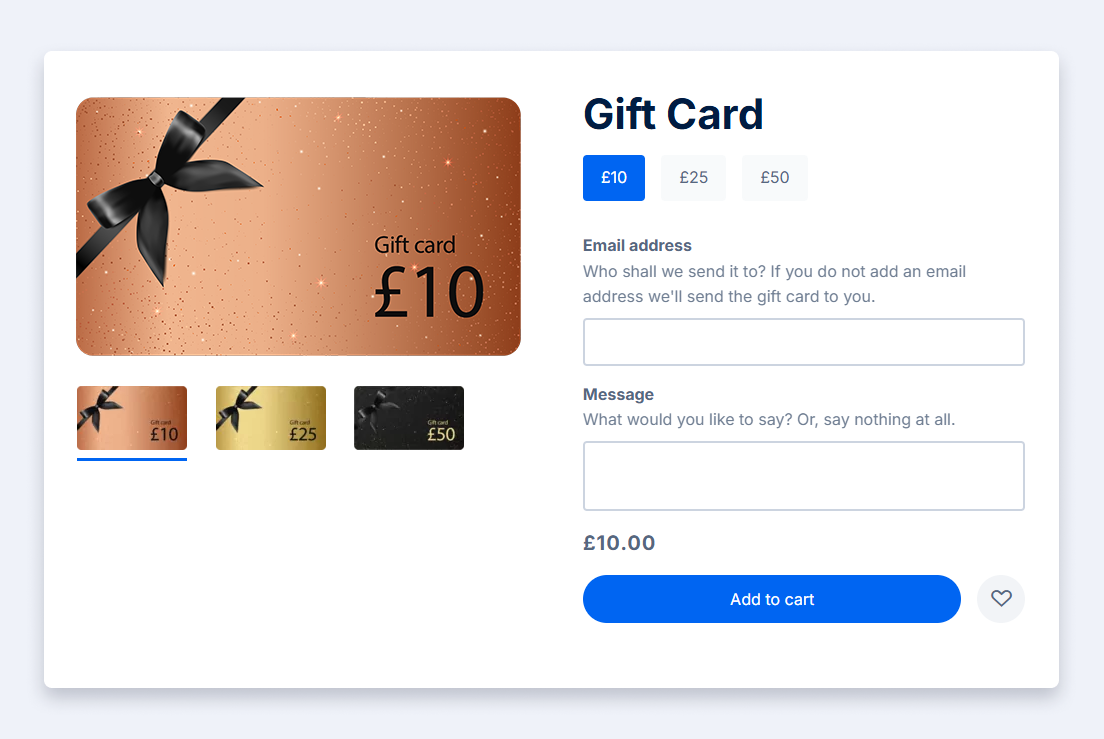
The image below is a mockup of a a gift card product page based on the Spark theme. We'll discuss the following parts of this image within the page:
- Steps to create a new gift card product
- Understanding gift card prices
- Adding denominations
- Gift card imagery
- Recipient customisation options
- Currency restrictions
Steps
- From your Evance admin panel, go to Products > Add a Product.
- Click on the "Gift Card" option.
- The minimum requirements when adding a new Gift Card product are:
- Title - enter a name of your gift card. Avoid including the monetary value in the title.
- Alias/URL - this will be auto-generated from your title, but you'll have the opportunity to modify it.
- Price - set the lowest denomination as your starting value.
- If you wish, you may also set the following:
- SKU code - Evance will create a sequential Quickfind code for your gift card, but you can set your own unique identifying code.
- Short Description - the short description typically appears under the title when displaying the gift card in a Category. However, this varies per theme.
- Primary photo - the primary photo used on Category pages and is shown throughout the checkout experience. It is also automatically associated with the gift card generated when purchased. This means the primary photo is used within emails to the recipient and in their checkout experience when redeeming a gift card.
- Meta title, description and keywords - these are used by Evance's internal search as well as other search engines.
- Minimum order quantity - we do not recommend changing this from the default value of 1.
- Maximum order quantity - allows you to restrict how many gift cards a user may purchase, leave blank or set to 0 for no cap.
- Publish start date and end date - useful for seasonal gift cards allowing you to schedule launch and removal from your site.
- Click Save product to continue.
You'll be redirected to the Gift Card Product Profile page, which will be disabled by default. This allows you to configure your product further before publishing.
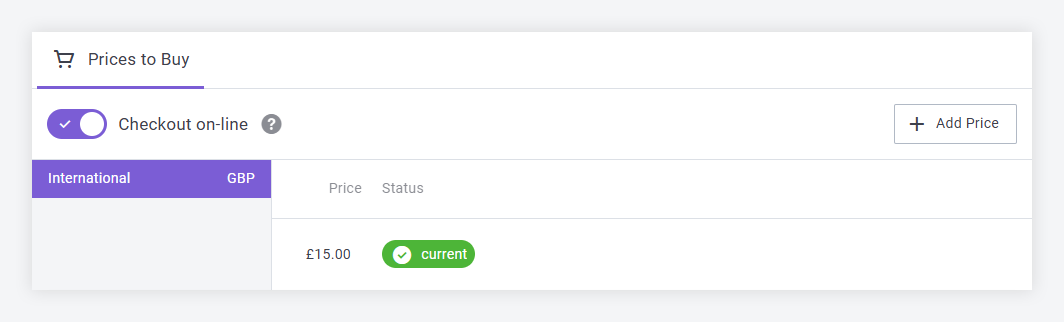
Understanding gift card prices
Gift card products have less price options than the default product type:
- Quantity discounts are not supported for gift cards.
- Gift cards are not subject to discount - you may not add offers and they're excluded from all other discount calculations.
- Permission-based pricing is not applicable - all gift card prices are public.
- RRP is not applicable to gift cards.
Adding denominations
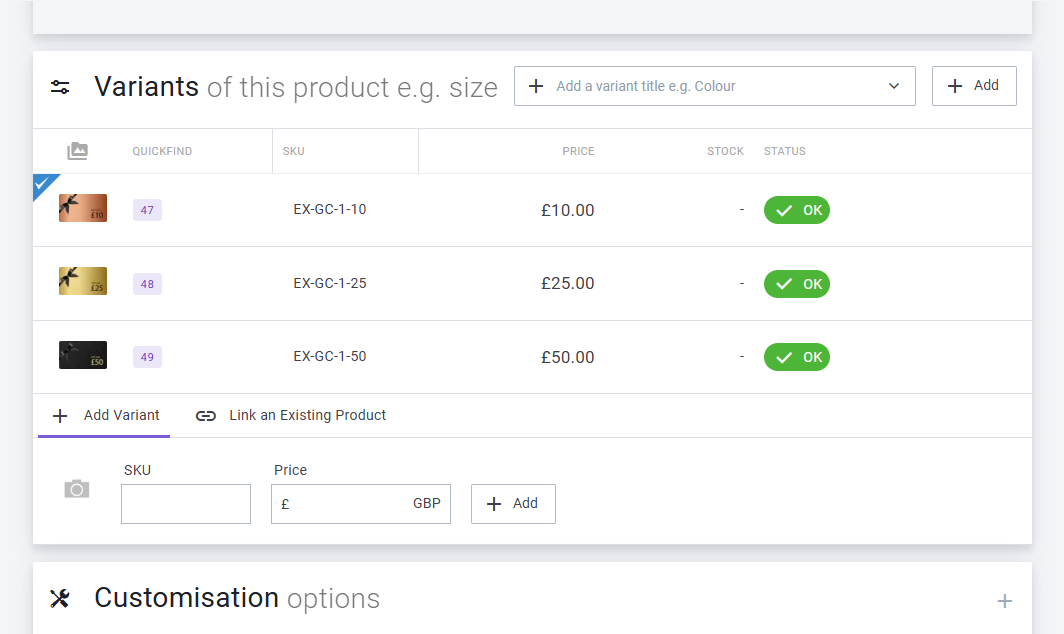
Gift card denominations are managed through a simplified version of the variant system.
- Scroll down to, or click on Variants
- SKU is optional, but allows you to track gift card sales by your own unique code.
- Enter a Price
- Click Add
As with other product types, gift card variants may also be managed to modify their primary images, specifications etc. The image below illustrates variants with their own primary images.
Gift card imagery
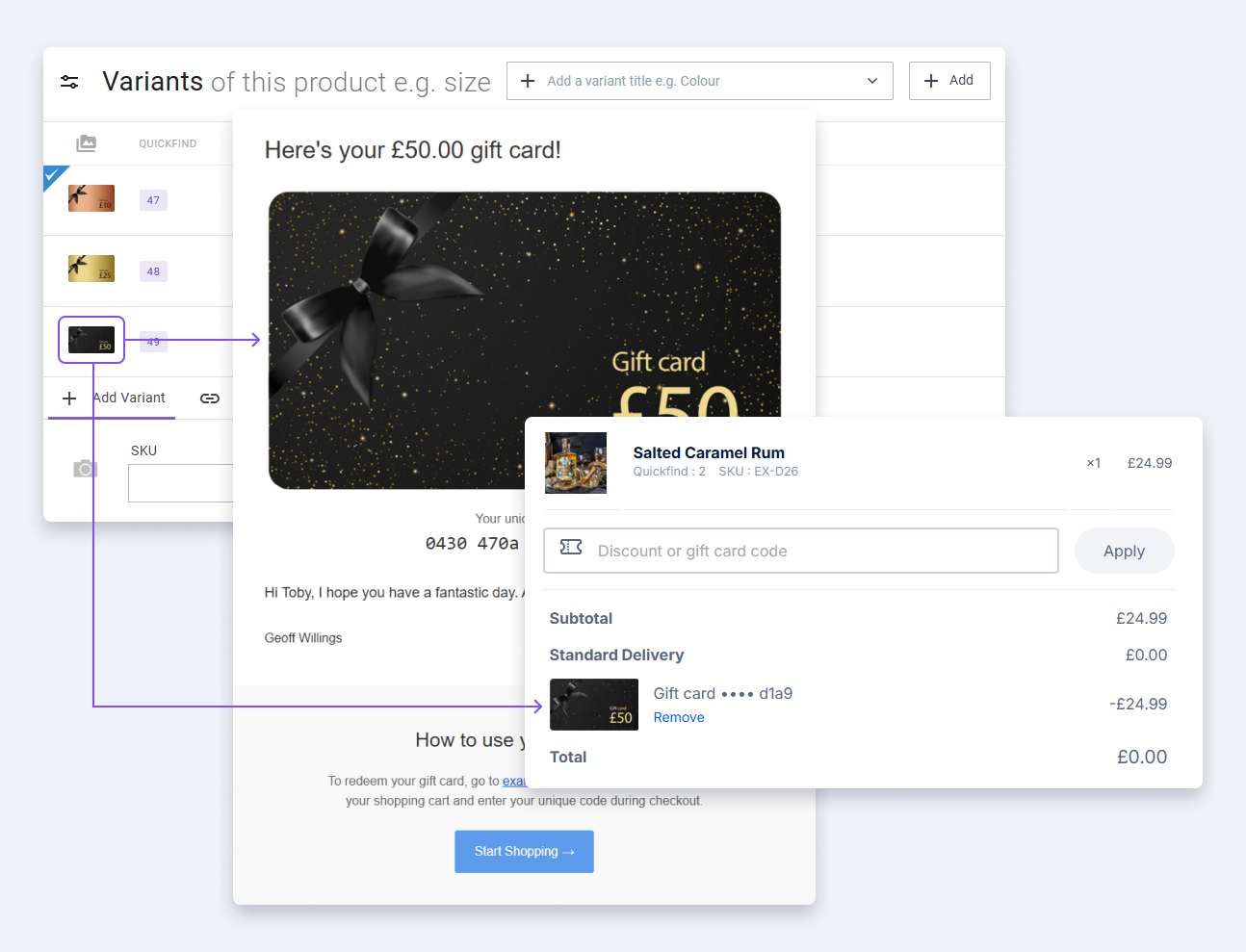
As illustrated above, you can have a different primary image for each Gift Card. When purchased the primary image is associated with the gift card and sent to the recipient along with their gift card code. The same image is used at checkout when the user redeems their code.
Recipient customisation
There are two customisation options specific to gift cards only:
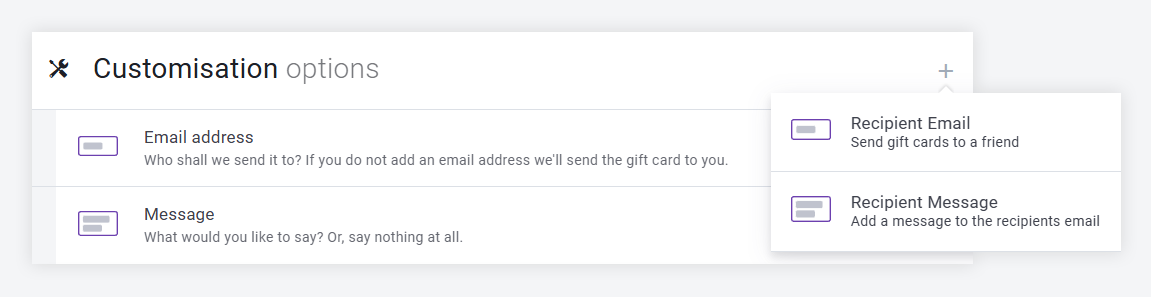
- Recipient email
The recipient email customisation option may be added once and allows you to ask your customer whether they wish to send the gift card to a friend's email address. You can enter your own label and description for this option and specify whether users are required to add a recipient email or whether it is optional. If the customer does not add a recipient email address, the gift card code will be sent to the customer's email address used during checkout.
- Recipient message
The customer may add a message to the recipient up to 300 characters long. Recipient message is not dependent on recipient email. This means a message may be added without an email. This allows the customer to use the field as a note to remember who they purchased the gift card for.
As with other customisation options, you may add a help URL to assist your customers in their purchase decision. However, rendering of your customisation options will be dependent on your theme.
Currency restrictions
If your website does not utilize Evance locales you can skip this section.
When a customer purchases a gift card, its use is limited to locales with the currency of purchase. For example, if your default store is in GBP and a user purchases a gift card in USD, the resulting gift card code may only be used on a locale with a USD currency.